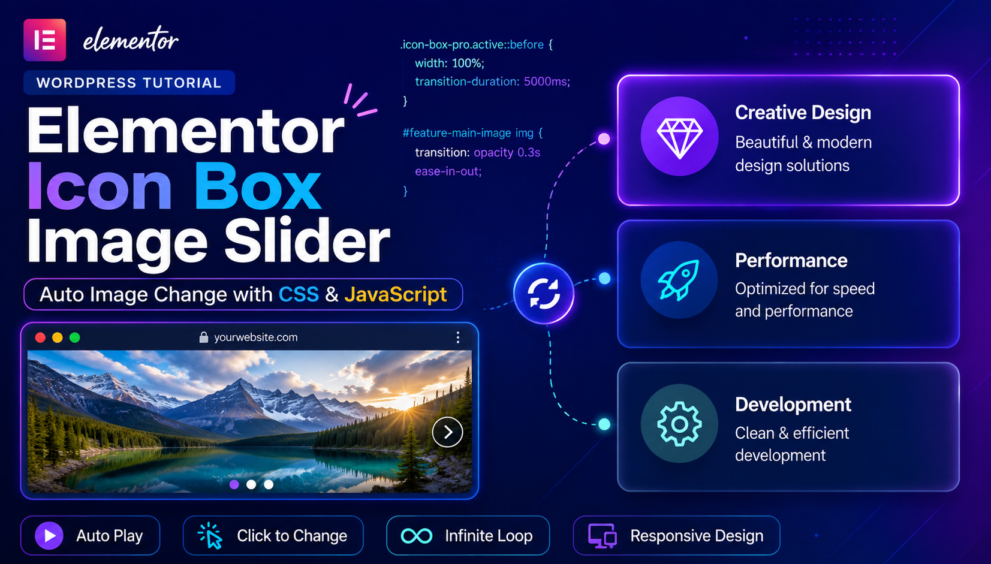


Create an interactive Elementor Icon Box cards automatically switch a featured image with a smooth fade effect. Each card includes a progress animation, auto-plays every 5 seconds, supports manual click navigation, and loops infinitely for a modern UI/UX experience.
Step 1: Add CSS Class to Icon Box Widgets
In Elementor, edit each Icon Box and add this CSS Class:
icon-box-proFor all 3 cards:
- Card 1 →
icon-box-pro - Card 2 →
icon-box-pro - Card 3 →
icon-box-pro
Step 2: Add ID to Image Widget Container
Select the image column/container that contains the main image.
Go to:
Advanced → CSS IDAdd:
feature-main-imageStep 3: Add CSS
Elementor → Custom CSS or Site Settings → Custom CSS
/* Card Setup */
.icon-box-pro{
    position:relative;
    overflow:hidden;
    z-index:1;
    cursor:pointer;
    background:#fff;
    transition:all .3s ease;
}

/* Content Above Progress */
.icon-box-pro .elementor-icon-box-wrapper{
    position:relative;
    z-index:3;
}

/* Progress Background */
.icon-box-pro::before{
    content:'';
    position:absolute;
    top:0;
    left:0;
    width:0;
    height:100%;
    background:#c3dce47a;
    z-index:2;
    transition:width linear;
}

/* Active Card */
.icon-box-pro.active::before{
    width:100%;
}

/* Reset */
.icon-box-pro:not(.active)::before{
    width:0 !important;
    transition:none !important;
}

/* Image Fade */
#feature-main-image img{
    transition:opacity .3s ease-in-out !important;
    width:100%;
}
Step 4: Add JavaScript
Elementor → Custom Code → Footer
<script>
document.addEventListener("DOMContentLoaded", () => {
  // 1. ADD YOUR IMAGE URLS HERE IN THE EXACT ORDER OF YOUR CARDS
 const imageUrls = [
    "image-1.png",
    "image-2.png",
    "image-3.png"
  ];

  // 2. Set global duration per card (5000ms = 5 seconds)
  const duration = 5000;

  const cards = document.querySelectorAll(".icon-box-pro");
  const mainImageContainer = document.getElementById("feature-main-image");
  let currentIndex = 0;
  let timeoutId = null;

  // Function to seamlessly swap image source and update srcset tags
  function updateMainImage(src) {
    if (!mainImageContainer || !src) return;
    const imgTag = mainImageContainer.querySelector("img");
    if (imgTag) {
      imgTag.src = src;
      if (imgTag.hasAttribute("srcset")) {
        imgTag.setAttribute("srcset", src);
      }
    }
  }

  function runSequence(index) {
    if (!cards.length) return;

    // Loop back boundary check
    if (index >= cards.length) {
      index = 0;
    }
    currentIndex = index;

    // Wipe active classes cleanly so old cards turn back to white background
    cards.forEach((card) => {
      card.classList.remove("active", "completed");
    });

    const currentCard = cards[currentIndex];
    const newImageSrc = imageUrls[currentIndex];

    // Smoothly fade out, change source, and fade back in
    if (mainImageContainer && newImageSrc) {
      const imgTag = mainImageContainer.querySelector("img");
      if (imgTag) {
        imgTag.style.opacity = "0.2";
        setTimeout(() => {
          updateMainImage(newImageSrc);
          imgTag.style.opacity = "1";
        }, 200);
      }
    }

    // Set layout timeline progress bar rules dynamically
    setTimeout(() => {
      let styleTag = document.getElementById('elementor-dynamic-progress-css');
      if (!styleTag) {
        styleTag = document.createElement('style');
        styleTag.id = 'elementor-dynamic-progress-css';
        document.head.appendChild(styleTag);
      }
      styleTag.innerHTML = `.icon-box-pro.active::before { transition-duration: ${duration}ms !important; }`;

      currentCard.classList.add("active");
    }, 50);

    // Schedule next card sequence loop jump
    timeoutId = setTimeout(() => {
      runSequence(currentIndex + 1);
    }, duration + 50);
  }

  // Mouse click handle overrides for instant jumping
  cards.forEach((card, index) => {
    card.addEventListener("click", () => {
      clearTimeout(timeoutId);
      runSequence(index);
    });
  });

  // CRITICAL FIX: Set the default image immediately on page load before the script loop kicks in
  if (imageUrls.length > 0) {
    updateMainImage(imageUrls[0]);
  }

  // Start the engine loop at card 0
  runSequence(0);
});
</script>
You will also like this post
- How to Add and Upload Category Images in WordPress Easily
- Quick Guide to Writing Your First Custom WordPress Plugin
- How to Set Up a Child Theme in Hello Elementor in 2025
Conclusion
Creating an Elementor Icon Box Image Slider is a great way to make your website more interactive and visually engaging. By combining Elementor Icon Boxes with a little custom CSS and JavaScript, you can automatically switch featured images, add smooth fade effects, animate active cards, and allow users to navigate through content with a single click. This lightweight solution improves user experience, highlights key information, and gives your Elementor sections a modern, professional look without relying on additional plugins.